
Origami Paper Art - Diagram
GeniusTools LabsArt & Design
4.5112.00 Reviews
- Version
- 6.1.0
- Installs
- 1.00M
- Age Rating
- Everyone
Screenshots
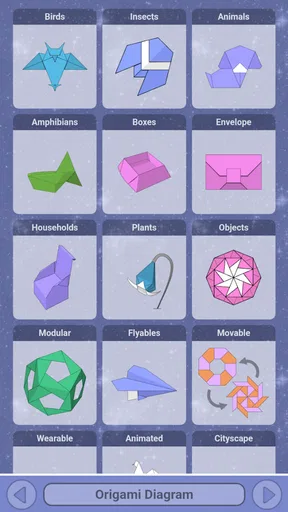
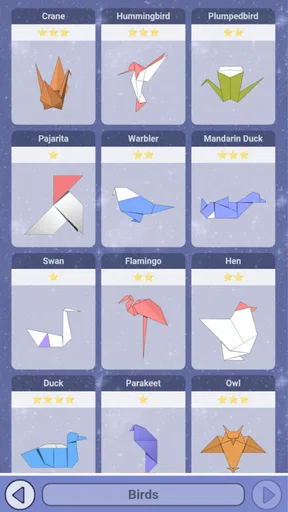
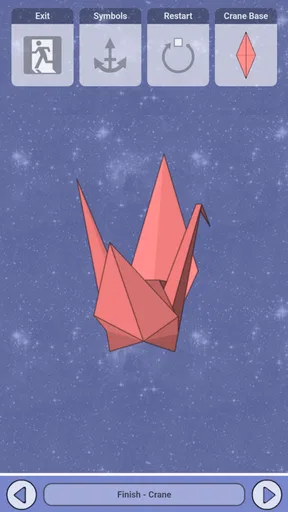
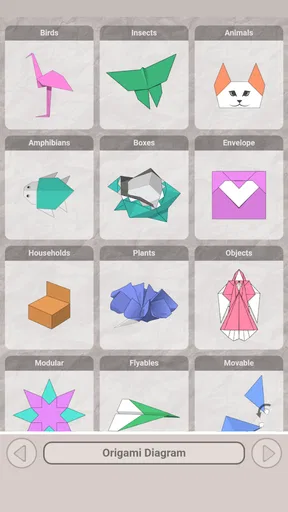
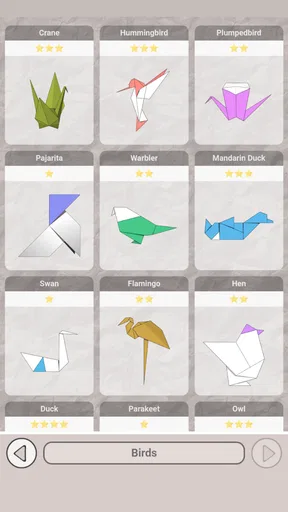
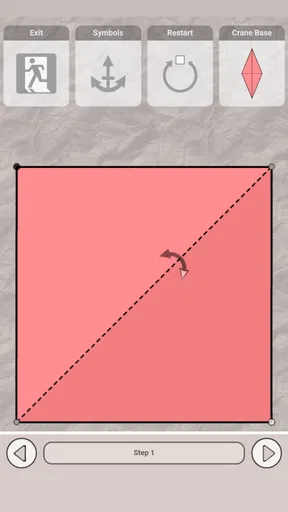
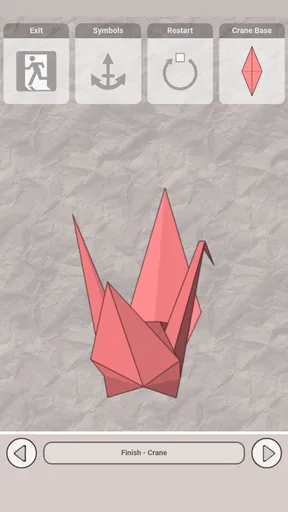
Our Review of Origami Paper Art - Diagram
 Analysis by Appyee
Origami Paper Art - Diagram is the kind of app I open when I want a quiet, hands-on activity without preparing a table full of books, printed templates, and loose notes. Its focus is simple: it presents paper-folding instructions for making origami models. That narrow purpose is also its main strength. Instead of trying to be a broad drawing suite or a social craft platform, it keeps my attention on the sequence of folds.
I reviewed it as an Art & Design app from GeniusTools Labs, and I found the experience most useful when I treated it as a visual guide rather than a complete course in paper craft. The app is free to install, carries an Everyone age rating, and has reached more than a million installs. Those details suggest that it is aimed at a wide audience, from children working with an adult nearby to adults looking for a small creative break.
The average rating sits at 4.5 from around 8,000 ratings, which fits my impression: this is an accessible tool with a clear purpose, although its usefulness depends heavily on how comfortable you are with interpreting diagrams. It was released on October 9, 2018, and the current version is 6.1.0 for devices running Android 5.0 or later. That broad compatibility is helpful if you are using an older phone or tablet for craft activities.
Why the diagram-based approach matters
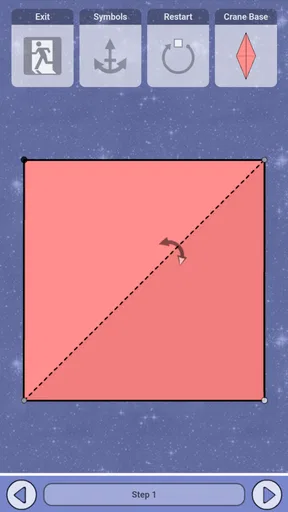
The central capability here is not simply showing a finished paper figure. It is guiding me through the folds visually, one stage at a time. That changes the way I use the app. A written craft article can tell me to fold a corner inward, align an edge, or reverse a crease, but those instructions can become confusing when several folds happen in succession. A diagram gives me a shape to compare against my own paper.
That comparison is the real value. I can pause after a fold, look at the next image, and decide whether my paper matches before continuing. When a model starts to look wrong, I can go back to the last recognizable step instead of guessing through the rest of the process. The most useful habit is to treat each diagram as a checkpoint, not merely as an illustration.
This approach also makes the app more approachable for people who do not enjoy reading long instructions. I can learn by watching the paper change shape. For younger users, that visual sequence may be easier to follow than paragraphs of craft terminology. For adults, it removes some of the setup involved in learning from a book, especially when I only want to make one small model during a break.
There is a tradeoff, though. Diagrams are compact, and compact instructions can leave room for interpretation. A fold that looks obvious on a larger screen may be harder to understand on a phone. The app therefore works best when I use a reasonably sized display and keep a real sheet of paper beside it. I would not expect the diagrams alone to replace patient practice, especially for models with layered or reversed folds.
Reading the instructions without rushing
My first recommendation is to prepare the paper before opening a model. A square sheet with clean edges makes the diagrams easier to follow, while a wrinkled or uneven sheet can make correct folds look incorrect. I also keep my fingers away from the screen as much as possible. If I need to check a step, I stop folding, inspect the image, and then continue rather than trying to manipulate paper and device at the same time.
Small creases matter more than beginners often expect. If the diagram shows a location created by an earlier fold, I make that crease sharply enough to remain visible. This is especially useful when several layers overlap. The app can show the intended shape, but it cannot compensate for a weak reference crease that disappears during handling.
Another practical tip is to compare landmarks instead of judging the whole model at once. I look for the direction of the flaps, the position of the corners, and whether the visible layers line up. This makes the visual instructions less intimidating. It also helps me identify the exact point where my version diverged from the guide.
What the experience feels like in everyday use
In a normal session, I use the app in short bursts. I choose a design, gather one or two sheets, and work through the sequence at my own pace. The format suits a kitchen table, a study desk, or a waiting period when I want something more active than scrolling. Because the app is free, I can try it without first deciding whether a paid craft book is worth the cost.
A realistic example would be a rainy afternoon with a child who wants to make something but is not ready for a complicated art program. I would place the phone or tablet where both of us could see it, give the child a square sheet, and handle the first difficult fold while letting them copy the easier ones. The visual steps give us a shared reference, so the activity becomes collaborative rather than dependent on one person remembering instructions.
For solo use, I find it helpful to make the same model twice. The first attempt is for understanding the sequence, and the second is for improving the creases and alignment. That workflow reveals an important strength of diagram-based learning: the first model teaches the process, while the second shows whether I actually understood it. A single finished object can hide mistakes; repeating the sequence exposes them.
The app is also suitable for a quick classroom or family activity, but I would not rely on one phone for a large group. A small screen makes it difficult for everyone to inspect the same step, and passing the device around interrupts the folding rhythm. A tablet is a better shared reference, while individual phones work better when each person is following independently.
Where it is stronger than ordinary alternatives
The most obvious alternative is a printed origami book. Books still have advantages: they do not require a battery, they can stay open beside the work area, and their pages often provide more room for diagrams. However, this app is easier to start with because I can access the instructions immediately and try a design without buying a book first.
Video tutorials are another common option. Video can demonstrate hand movement and reveal how a crease is made, which is valuable for tricky folds. On the other hand, video often moves at a fixed pace. I have to pause, rewind, or scrub until I find the right moment. A diagram-based app is quieter and more direct when I want a stable reference rather than a performance to follow.
General drawing apps are not really substitutes. They may let me sketch an origami idea, but they do not guide the physical transformation of paper. Origami Paper Art - Diagram is more useful when the goal is to make an object with my hands, not merely create an image of one. That distinction makes the app specific and practical, even though its feature set is narrower than a full creative suite.
Printed templates can also be better for exact classroom distribution or repeated group projects. If every student needs the same page in front of them, paper is predictable. The app is more convenient for exploration, personal practice, and trying different projects without accumulating sheets of instructions.
The best scenario for using it
I think the app shines during low-pressure practice sessions where the goal is concentration rather than perfection. I can choose a model, work slowly, and use the diagrams to develop better folding habits. It is particularly well suited to beginners who want visual support but do not yet know which books or channels are worth following.
It also works well as a screen-based activity that leads away from the screen. That may sound contradictory, but the phone is only the reference point; the actual task happens with paper. I spend most of the session looking at the sheet, checking the next step only when needed. For someone trying to replace passive scrolling with a small creative routine, that balance is appealing.
Families can use it for a weekend craft table, and adults can use it for handmade decorations, small gifts, or simple desk objects. I would still choose the paper carefully. Thin paper is easier for beginners to fold, while thicker paper can hold a shape better but becomes difficult when many layers build up. The app provides the sequence, but the material determines how forgiving the result will be.
One non-obvious advantage is that the app encourages delayed correction. Instead of immediately unfolding everything after a mistake, I can compare the current shape with the next diagram and see whether the difference is actually important. Sometimes a crease is slightly off but the model can continue; other times the error will affect the next layer. This helps me distinguish cosmetic imperfections from structural mistakes.
Limitations that affect the decision
The biggest limitation is the nature of visual instructions themselves. A diagram can show where paper should end up, but it may not fully communicate pressure, depth, or the order in which overlapping layers should move. Beginners may need several attempts before a model makes sense. If you want spoken explanations, close-up hand demonstrations, or a teacher correcting your technique, a video course or in-person class will be more effective.
Phone size is another consideration. On a compact display, fine lines and small arrows can be difficult to inspect. I would prefer using a tablet when possible, especially for a group or for models with many layers. A larger screen does not make the folds easier by itself, but it reduces the visual strain of checking the guide.
The free price lowers the barrier to entry, but in-app purchases range from $0.99 to $99.99 per item. I would pay attention to what is available without spending and decide whether the free portion matches my needs before making a purchase. The app is worth trying at no cost, but users who expect every possible design to be included freely should review the available content carefully inside the app.
Some people may also find the experience too narrow. If your main interest is digital illustration, photo editing, typography, or painting with brushes, this is not the right Art & Design app. Its purpose is physical paper folding, and that focus means it will not replace a sketchbook app or a professional design tool.
I would also skip it if I need a polished finished object immediately. Origami rewards repetition, and the first attempt may be uneven even when the instructions are clear. The app can shorten the learning curve, but it cannot remove the need to align edges, sharpen creases, and understand how layers behave.
Who gets the most from it
Beginners gain the most because the visual sequence gives them a starting structure. Parents may appreciate the Everyone rating and the fact that the activity can be shared without specialized equipment. Adults who already know basic folds can use the app as a quick reference when they want a new project without searching through a long article.
It is also a good fit for people who learn spatially. If you understand an instruction more easily after seeing the final shape, the diagrams can make the process feel manageable. I would recommend it to anyone who likes short, repeatable creative tasks and does not mind learning through trial and error.
More advanced folders may find it useful as a source of practice, but they should keep expectations realistic. Experienced users often want detailed notation, model difficulty information, paper-size guidance, or deeper explanations of technique. When those details matter, a specialized origami book or an expert video tutorial may provide a stronger learning path.
People with limited hand mobility should consider the physical demands of the models before committing to a long session. Folding requires controlled pressure and repeated handling of small edges. The app can show the steps, but it does not change the dexterity required to perform them. Working with larger paper and taking breaks may make the activity more comfortable, though the best choice depends on the individual.
For teachers and activity leaders, the app is best used as a supplementary visual reference rather than the entire lesson. I would demonstrate the first few folds, place the device where everyone can inspect it, and circulate to help with the steps that diagrams cannot explain. That combination preserves the app's convenience while adding the human guidance that beginners often need.
My practical verdict
After using Origami Paper Art - Diagram as a folding guide, I see it as a focused entry point rather than a complete origami education. Its strongest feature is the ability to turn a paper project into a sequence of visual checkpoints. That makes starting easier, helps me locate mistakes, and gives short creative sessions a clear shape.
The current version, 6.1.0, supports a broad range of older Android devices because the minimum requirement is Android 5.0. The app comes from GeniusTools Labs and remains free to install, although individual in-app purchases can cost from $0.99 to $99.99. I would try the free experience first, use a larger screen if available, and keep simple paper nearby so the instructions become an actual activity rather than something I only browse.
My recommendation is strongest for beginners, families, and anyone who wants a calm craft project with visual guidance. I would choose a book, video lesson, or instructor instead when I need detailed technique, spoken explanation, or advanced model analysis. For the right user, though, this app does something valuable: it lowers the friction between seeing an origami idea and making the first fold.
Origami Paper Art - Diagram is worth trying if you want a free, approachable way to practice paper folding and are willing to learn by checking shapes, repeating attempts, and improving your creases. It will not do the folding for you, and that is precisely why its best use is as a quiet companion to the real creative work.
Verdict
Strengths of Origami Paper Art - Diagram
- Clear diagrams make folding steps easy to follow.
- Includes a variety of designs for different skill levels.
- Useful offline for practicing without an internet connection.
- Folding activities can improve focus and hand coordination.
- Simple interface keeps attention on the paper instructions.
Limitations of Origami Paper Art - Diagram
- Some advanced models may be difficult for beginners.
- Paper size and quality can affect the final result.
- Instructions may require careful zooming on smaller screens.
- The app may offer limited guidance for correcting mistakes.
- Some content or features may require in-app purchases.
Other Releases by GeniusTools Labs
View All
Trace Drawing: How To Draw
Art & Design4.6

Widget 2026: Aesthetic Widgets
Personalization4.6

GPS Maps Voice Navigation App
Maps & Navigation4.8

Sweet Editor Camera Lite
Beauty4.6
Similar Picks in This Category
View All
Canva: AI Photo & Video Editor
Canva4.8

PENUP – Drawing-sharing SNS
Samsung Electronics Co., Ltd.4.5

Crafto
Kutumb App4.6

Sketchbook
Sketchbook4.1

ibis Paint X
ibis inc.4.5

Adobe Express: AI Photo, Video
Adobe4.6
Frequently Asked Questions
What is Origami Paper Art - Diagram, and what can I do with it?
Origami Paper Art - Diagram is an instructional app focused on folding paper into decorative figures, animals, objects, and other creative designs. It provides step-by-step visual diagrams that you can follow at your own pace. The app is useful for beginners who need clear guidance, as well as experienced folders looking for new projects and ideas to practice.
Is Origami Paper Art - Diagram suitable for beginners and children?
The app is generally suitable for beginners because its projects are presented through sequential folding instructions rather than requiring previous origami experience. However, difficulty can vary between designs, and some models may involve many folds or precise techniques. Children can use it with supervision, especially when handling paper, choosing suitable projects, or using any optional tools outside the app.
Do I need special paper or materials to follow the origami instructions?
You can usually begin with ordinary square paper, making the app accessible without purchasing specialized supplies. Nevertheless, paper size, thickness, color, and flexibility can affect the final result. Thin origami paper is often easier for detailed models, while thicker paper may work better for simple shapes. It is also helpful to keep a flat surface and a ruler nearby for accuracy.
Does Origami Paper Art - Diagram work offline, and are there advertisements or in-app purchases?
The availability of offline instructions, advertising, and optional purchases can depend on the app version and the platform store listing. Some content may be accessible without an internet connection after installation, while other features could require online access. Before downloading, check the current Google Play or App Store description for pricing, advertisements, permissions, and any in-app purchase details.
What should I do if a model is difficult to fold or the diagrams are unclear?
Origami instructions can be challenging when a fold is missed, the paper is not aligned, or several steps look similar. Work slowly, crease each fold carefully, and compare your paper with the diagram after every stage instead of waiting until the end. Starting with simpler models is recommended. If a design remains confusing, try enlarging the instructions or looking for an alternative tutorial.
